
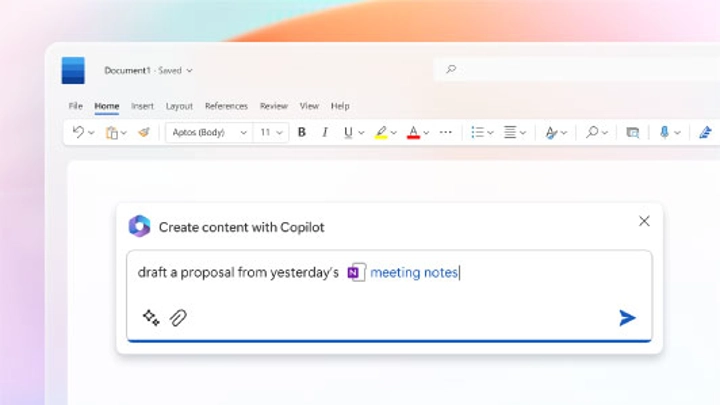

Copilot for Office 365 Training
1 day (10:00 AM - 5:00 PM Eastern)
$375.00
Register for a live online class.
Details
Subjects Covered
Prerequisites
Setup Requirements
Details
Course Details
Microsoft Copilot for Office 365 is more than an AI feature. It is an intelligence layer embedded across the Microsoft 365 ecosystem. This course goes beyond basic demonstrations to help participants understand how Copilot works, when it helps, when it fails, and how to use it responsibly and effectively in real business scenarios.
Participants will learn how Copilot draws from Microsoft Graph data, how context and permissions affect results, and how to design workflows that combine human judgment with AI acceleration. Through hands-on exercises and realistic use cases, learners will develop practical skills for writing, analyzing data, creating presentations, managing communication, and collaborating more effectively while maintaining security, accuracy, and professional standards.
Subjects Covered

Copilot for Office 365
- Understanding Microsoft Copilot
- What Microsoft Copilot Is and Is Not
- Copilot as an AI orchestration layer, not a replacement for skills
- How Copilot differs from standalone AI tools
- Common misconceptions about “AI doing the work for you”
- From GPT Models to Microsoft Copilot
- High-level overview of large language models
- Why Copilot is grounded in Microsoft 365 data
- The role of Microsoft Graph in Copilot responses
- How Copilot Generates Answers
- Tokens, context windows, and relevance
- Why Copilot answers vary by user
- What Copilot can see and what it cannot
- What Microsoft Copilot Is and Is Not
- Copilot Interfaces and User Experience
- Copilot Chat vs In-App Copilot
- When to use Copilot Chat
- When in-app Copilot is more effective
- Switching between conversational and task-based workflows
- Copilot Interaction Fundamentals
- Understanding prompts as collaboration, not commands
- Asking Copilot “why” and “how,” not just “do this”
- Iterative prompting for refinement and accuracy
- Copilot Chat vs In-App Copilot
- Preparing Microsoft 365 for Copilot Success
- Why Copilot Performance Is a Data Problem
- File sprawl, email overload, and noisy Teams channels
- How poor structure limits AI usefulness
- Improving Information Quality
- File naming, versioning, and organization strategies
- Structuring Teams channels for meaningful context
- Writing emails and documents Copilot can actually summarize
- Permissions, Exposure, and Trust
- How Copilot respects existing security boundaries
- Risks of over-permissioned content
- Why “Copilot surfaced this” is not a security breach
- Why Copilot Performance Is a Data Problem
- Copilot in Microsoft Word: AI-Assisted Writing with Accountability
- Drafting and Refining Content
- Generating first drafts vs polishing existing content
- Adapting tone, audience, and purpose
- Improving clarity without losing intent
- Structured Business Documents
- Policies, procedures, proposals, and reports
- Turning rough ideas into structured documents
- Maintaining ownership and accuracy
- Research, Citations, and Validation
- Using Copilot to summarize source material
- Verifying facts and avoiding hallucinations
- When human review is non-negotiable
- Drafting and Refining Content
- Copilot in Microsoft Excel: Insight Acceleration, Not Skill Replacement
- Asking Questions of Your Data
- Natural language queries for insights
- Understanding what Copilot infers vs calculates
- Formulas, Analysis, and Trends
- Generating formulas and explanations
- Identifying trends and anomalies
- Validating AI-generated insights
- Responsible Data Analysis
- When Copilot helps—and when it can mislead
- Avoiding blind trust in AI-generated conclusions
- Asking Questions of Your Data
- Copilot in Microsoft PowerPoint: From Content to Story
- Creating Presentations Faster
- Turning Word documents and notes into slides
- Structuring decks for clarity and flow
- Design and Layout Assistance
- Design suggestions vs design decisions
- Accessibility and localization considerations
- Executive vs Informational Presentations
- Creating Presentations Faster
Prerequisites
Before Taking this Class
Participants should be proficient users of Microsoft 365 applications (Word, Excel, PowerPoint, Outlook, Teams).Setup Requirements
Software/Setup For this Class
Participants must have access to Microsoft 365 (Business or Enterprise) with Copilot enabled:
Microsoft Copilot for Microsoft 365 (licensed and turned on by IT)
Must include access to:
- Word (Web & Desktop)
- Excel (Web & Desktop)
- PowerPoint (Web & Desktop)
- Outlook (Web & Desktop)
- Teams
- OneDrive
- SharePoint Online
Copilot Interfaces
Participants should be able to access:
In-app Copilot
- Copilot icon in Word, Excel, PowerPoint, Outlook, and Teams
Copilot Chat
- Accessed via Microsoft 365 app launcher or browser
Onsite Training
Do you have five (5) or more people needing this class and want us to deliver it at your location?